Castle Program · Student Handbook
Castle Travel
Also called My Travel Story (MTS) — where you register your weekend plans so the Castle knows where you'll be, every week you're in residence.
Every weekend needs a plan by Wednesday, 10:00 AM Castle time (Amsterdam, Netherlands — that's 4:00 AM Boston/EDT or 3:00 AM Boston/EST). You'll get a reminder Tuesday morning, and an urgent one 30 minutes before the cutoff. After 10:00 AM, meal sign-ups lock — changing your plan still works, but you'll need to give a reason, and the office is notified.
1 Sign in
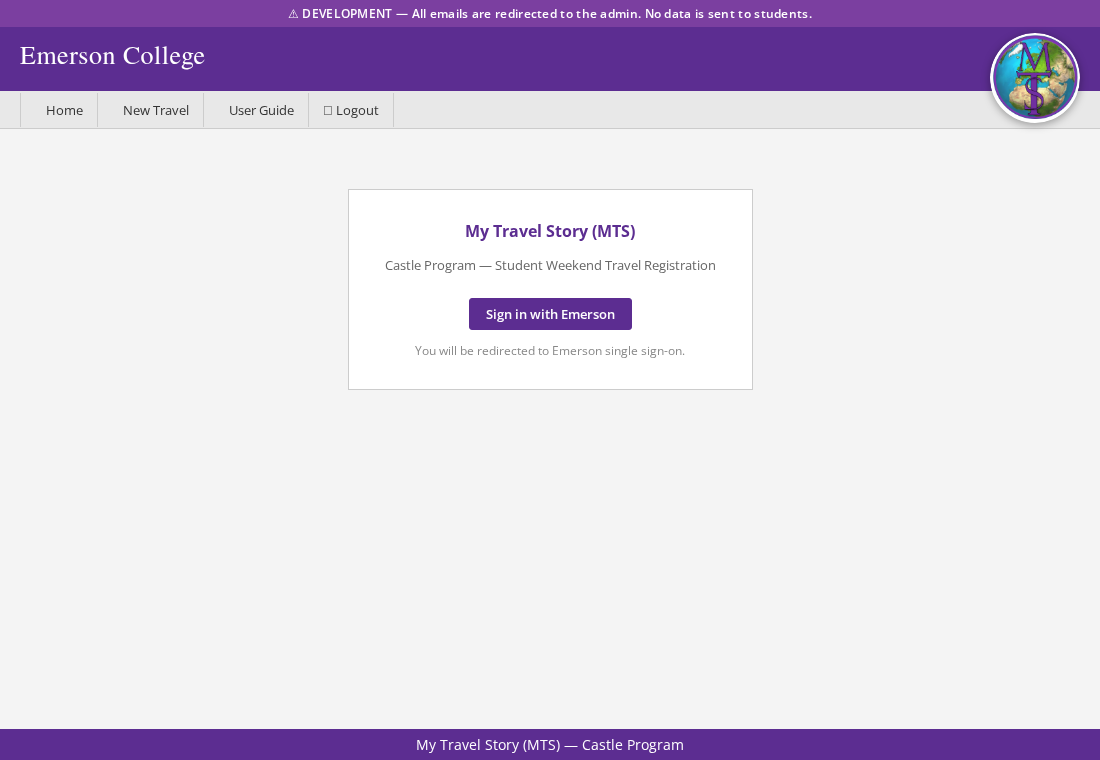
Go to the Castle Travel site and select Sign in with Emerson. You'll be sent through Emerson's normal Duo login — there's no separate password for this app.
Show screenshot
2 Register your weekend
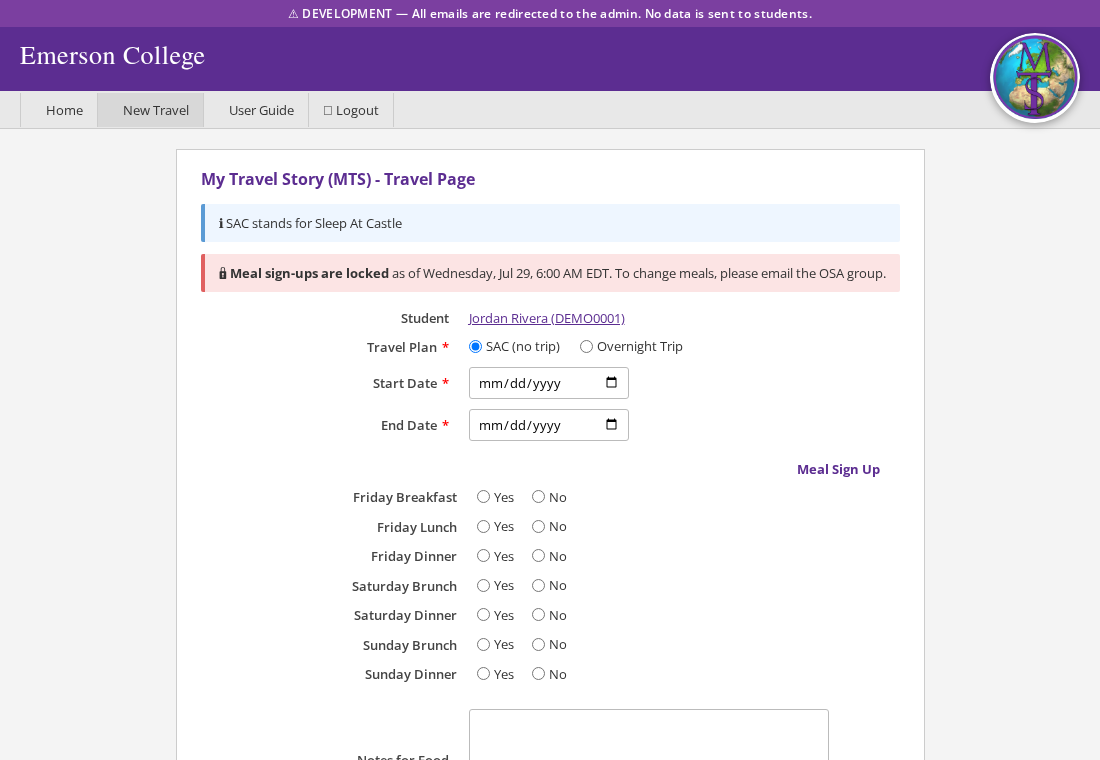
Every student registers one plan per weekend: staying in or heading out.
-
Choose Sleep At Castle or Overnight Trip
Staying in is only for the current week — you can't pre-register a future SAC weekend.
Show screenshot
-
Set your times
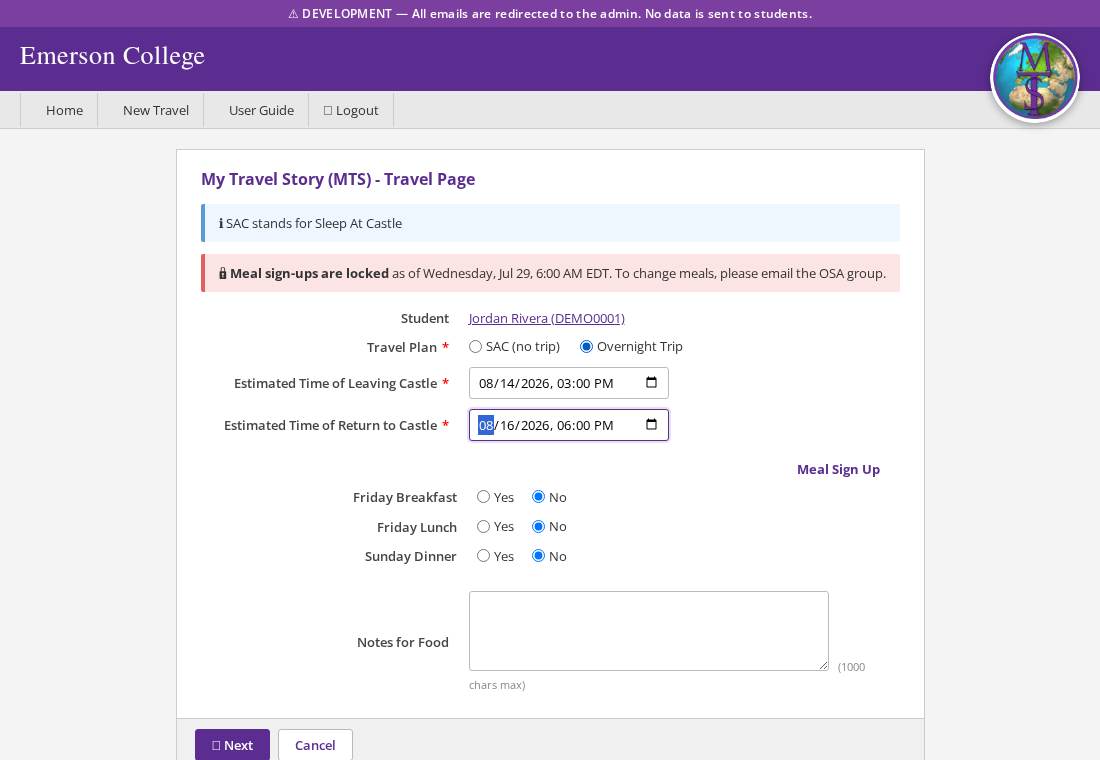
SAC needs start/end dates. An overnight trip needs your estimated time of leaving and returning — this also decides which meals you'll be asked about next.
-
Sign up for meals
Breakfast, lunch, and dinner from Friday through Sunday brunch — only the meals you'd actually be around for are shown. Add food notes if you need to.
Show screenshot
-
Add your destination(s)
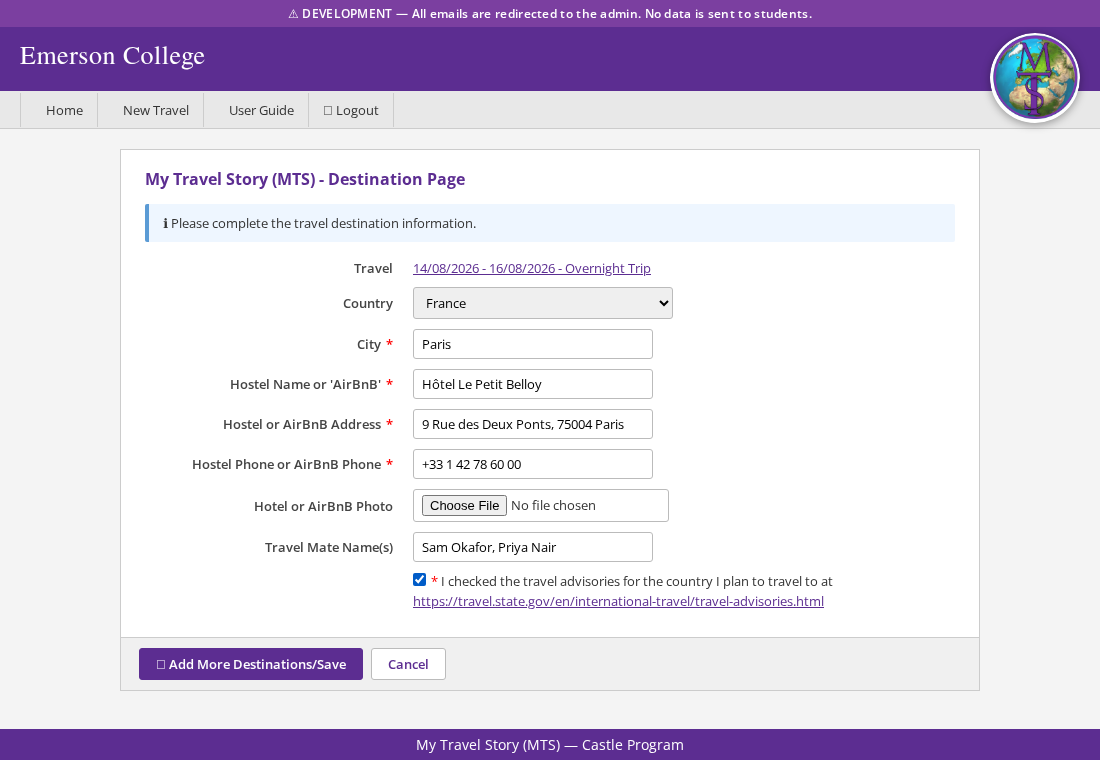
Traveling overnight also asks for: country, city, where you're staying (name, address, phone), who you're traveling with, and a checkbox confirming you looked at the State Department's travel advisory for that country. Add more than one stop if your trip has them.
Show screenshot
-
Submit
Your plan is saved right away — no separate approval step. You can still edit it later.
3 When you're back
If you registered an overnight trip, check in from your Travel Detail page once you're back at the Castle — log your actual return time and any notes. This closes out the trip.
Changing a plan
Edit anytime from your Travel Detail page. After the Wednesday 10 AM cutoff, you'll be asked for a reason — meal sign-ups themselves stay locked, so email the office directly if a meal needs to change.
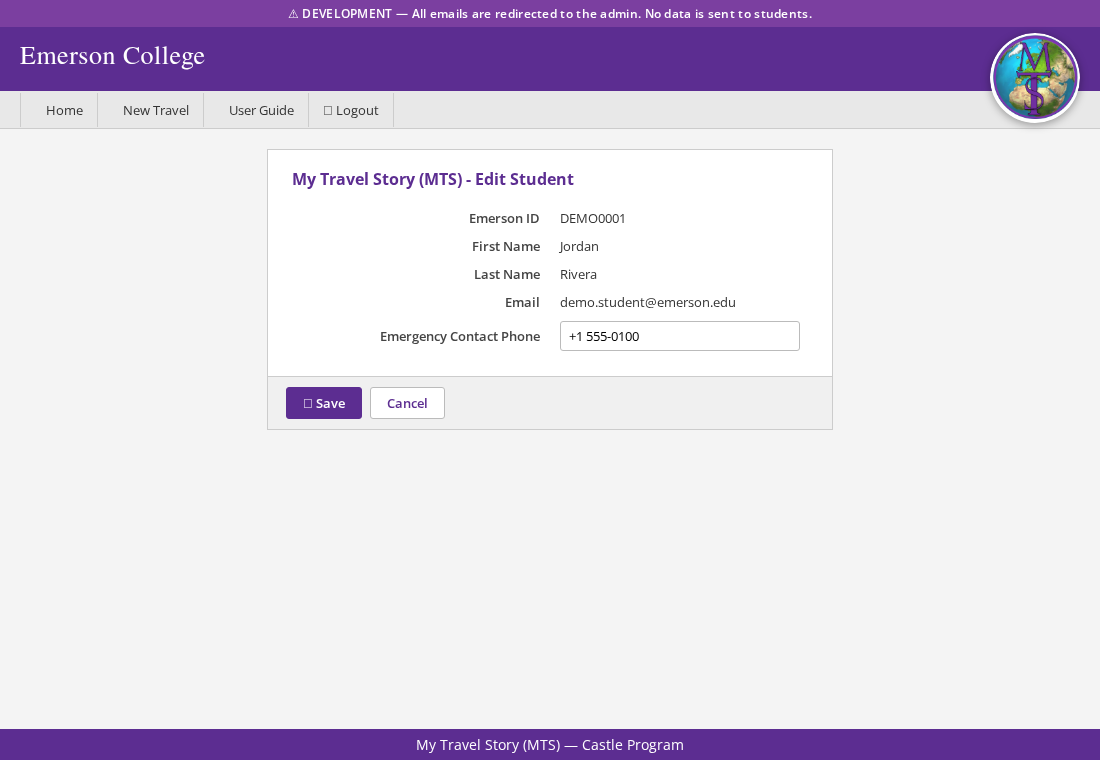
Your emergency contact
Kept on your profile, separate from your travel plans. Check it's current whenever you edit a plan — it's what the office calls if they can't reach you.
Show screenshot
4 Your weekly status
Your Home screen shows a small colored badge next to your name that updates automatically throughout the week.
| Badge | Meaning |
|---|---|
| OC — On Campus | You have a plan for this weekend and you're marked as on-campus (SAC plan, or you've already checked back in from an overnight trip). |
| OT — On Traveling | You have an overnight or daytrip plan and your estimated return time hasn't passed yet. |
| NB — Not Back | Your estimated return time has passed but you haven't checked back in yet. Do this from your Travel Detail page as soon as you're back at the Castle. |
| NR — Not Registered | No plan on record for this weekend. Register your plan before the Wednesday deadline. |
? Where things live
| Screen | What it's for |
|---|---|
| Home | Your dashboard — this week's plan, upcoming plans, your weekly status badge, and any overdue check-ins.
Show screenshot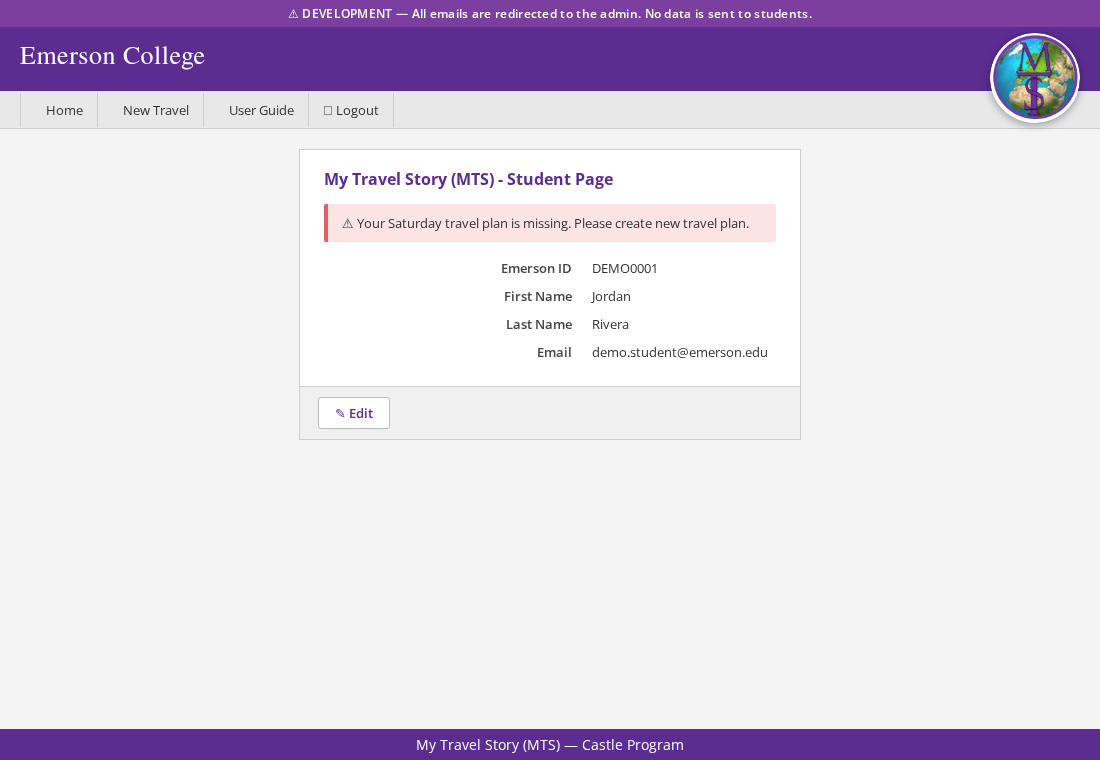
|
| Travel Plan | Create or edit a weekend's SAC / Overnight choice, times, and meals. |
| Destination | Add, edit, or remove a stop on an overnight trip. |
| Check-In | Log your actual return after an overnight trip. |
| Edit Profile | Update your emergency contact phone number. |